![LSquared-logo-gray.png]](https://help.lsquared.com/hs-fs/hubfs/captivate/LSquared-logo-gray.png?height=40&name=LSquared-logo-gray.png)
In here, you will learn how to register your device to the Hub.
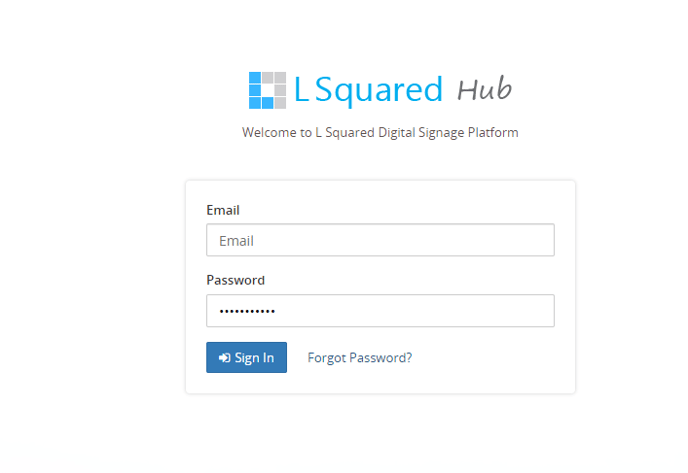
1. Log into the L Squared Hub
2. Go to Devices on the left hand side panel.
3. Select "Add a device" at the top left corner

Note: If you do not see this button and see "0 licenses" instead, that means you currently do not have any licenses in your server. Please reach out to our sales team to purchase licenses.

Once you have selected "Add a device", you will need to assign the devices name and it's permissions.
1. Select a license from your server in the drop down menu
2. Add your device ID. (Device ID is the 12 character you see displayed on your screen on a new device)
3. Assign a name to your device and the timezone you'd like the device to be reference as.
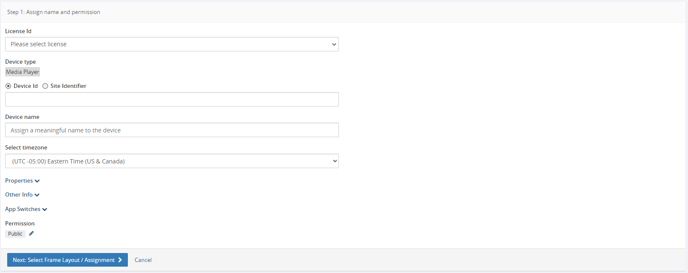
Once done, you can click next and assign the frame layout/assignment you'd like. You can find out more regarding frame layout & assignment in article " Frame Layout & Assignments".