![LSquared-logo-gray.png]](https://help.lsquared.com/hs-fs/hubfs/captivate/LSquared-logo-gray.png?height=40&name=LSquared-logo-gray.png)
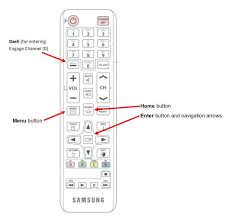
Step 1: Press “Home” button on remote.
Step 2: Select “URL Launcher Settings”.
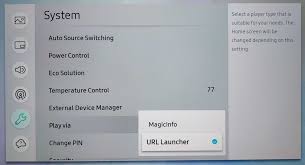
Note: If you're unable to see, "URL Launcher Settings", Please ensure Play via is set to URL Launcher. To access Play Via, simply press the menu button > System > Play via
Step 3: Select “Install Web App”.
-jpg.jpeg?width=688&height=539&name=Image%20(4)-jpg.jpeg)
Step 4: Type the following URL in the text field( case sensitive)
In order to determine what environment link is needed, you will need to:
Log into the L Squared Hub
Look at your browser's URL.
If your URL starts with "us.lsquared.com", please download the US HUB Link below.
https://us.lsquared.com/cr/ts/tizen - US HUB
If your URL starts with "hub.lsquared.com" please download the CA Hub link before.
https://hub.lsquared.com/cr/ts/tizen- CA HUB
Step 5: Press Enter.
Step 6: Tizen Might ask you for the secret pin. By default, the pin is 0000 if you have not changed it earlier.
Step 7: Installation process will start, and it will launch the app once the installation process is complete.
Step 8: You will see the device id on the screen, click a picture of the screen and send it to L Squared Support @ support@lsquared.com along with the address of the location.
Note: If your browser's URL is not listed here, please reach out to our support team @ 1-877-525-1995 (option:1) or email us - support@lsquared.com for more information.