![LSquared-logo-gray.png]](https://help.lsquared.com/hs-fs/hubfs/captivate/LSquared-logo-gray.png?height=40&name=LSquared-logo-gray.png)
Please follow the steps below to install and launch the L Squared Slide app on the Sharp TV:
Install L Squared Slide
1. Download the .apk file from the following URL and save it to a USB stick:
https://us.lsquared.com/cr/aslide/LSquared-ASlide-US.apk
2. Turn on your Sharp TV.
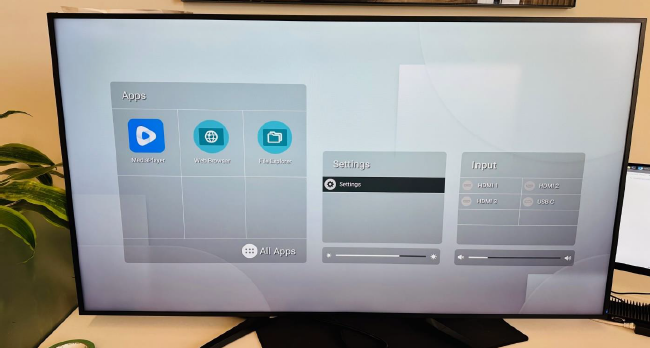
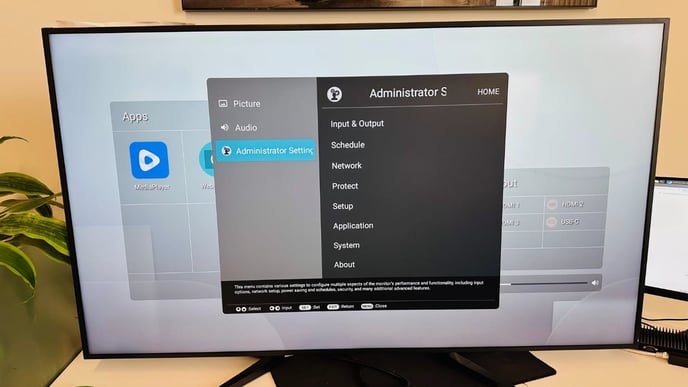
3. Go to Settings > Administrator Settings > Protect.
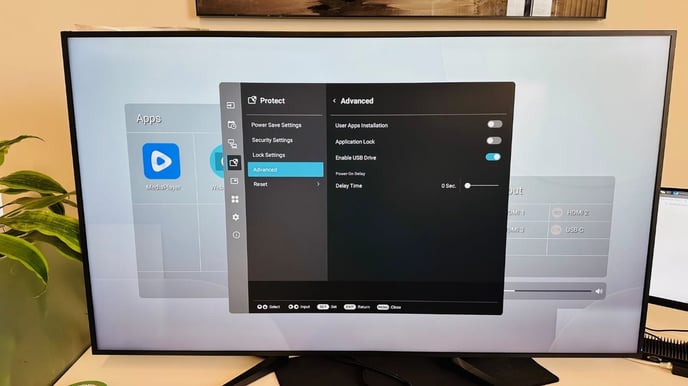
4. Go to Protect > Advanced and toggle "User Apps Installation" to On.
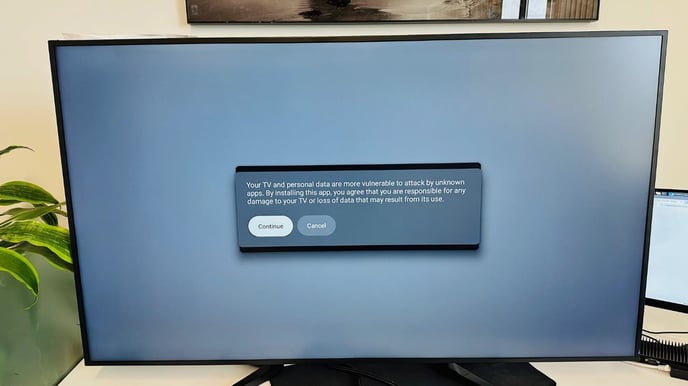
5. Accept the installation prompt:
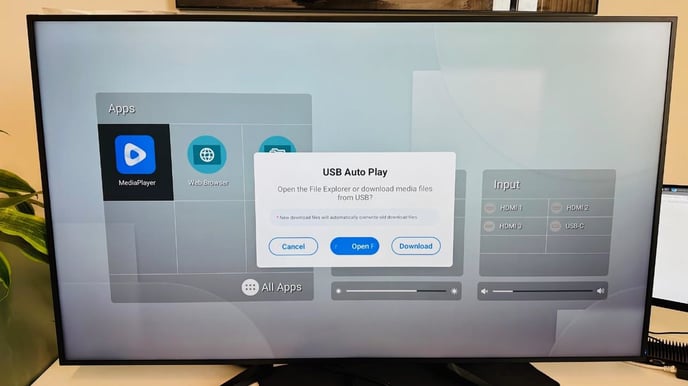
6. Plug in the USB and choose the “Open File explorer” option:
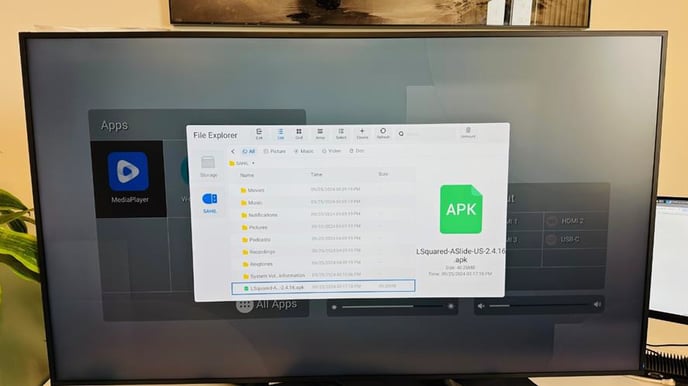
7. Navigate to the folder where the .apk file is saved:
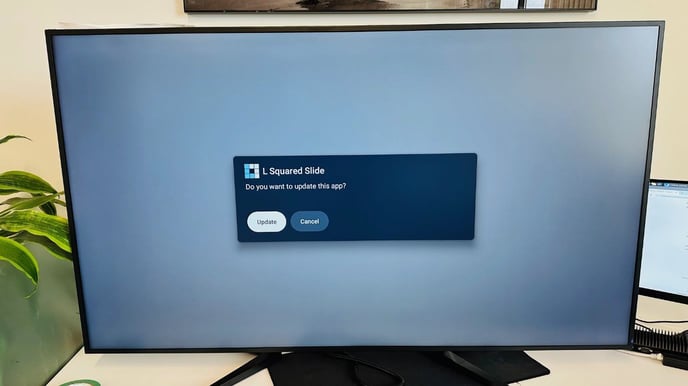
8. Install the L Squared Slide app:
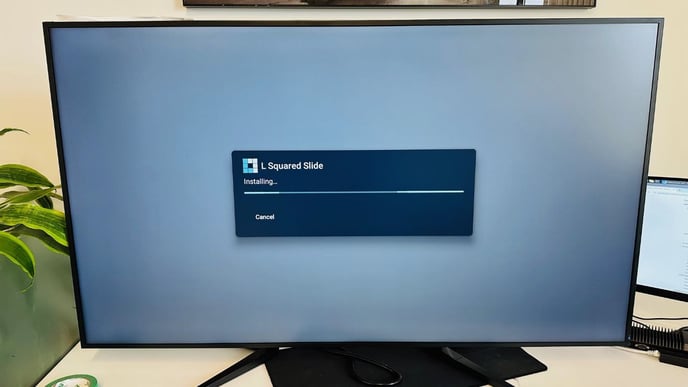
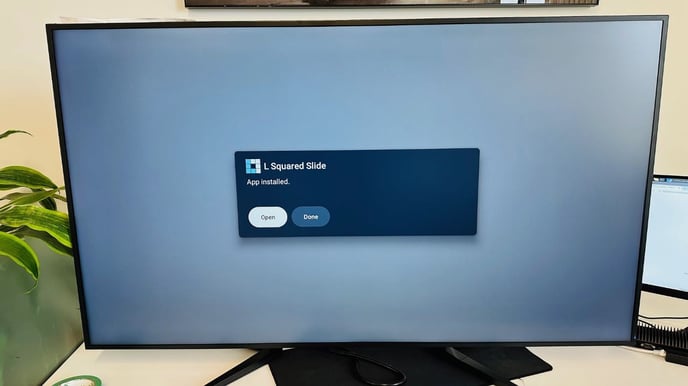
9. Open the L Squared Slide app once the installation is complete:
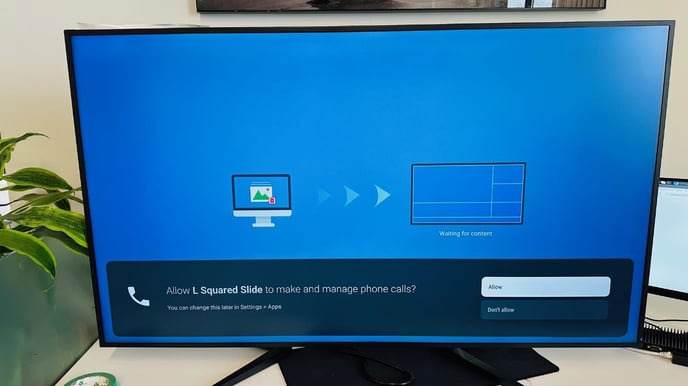
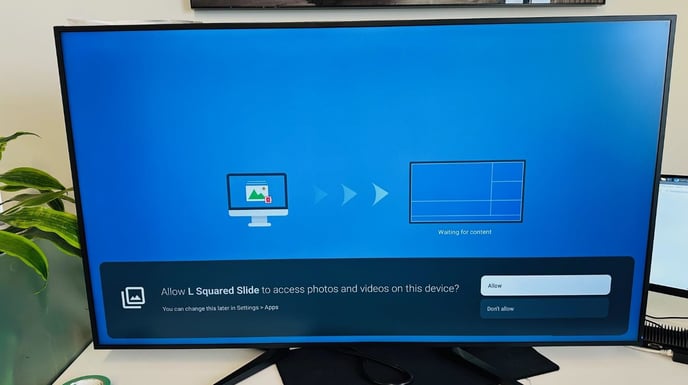
10. Allow all permissions when prompted during the app launch:
Set L Squared Slide as Startup Application
To ensure L Squared Slide automatically starts when you turn on the Sharp TV, please follow these steps:
1. Go to Settings > Administrator Settings:
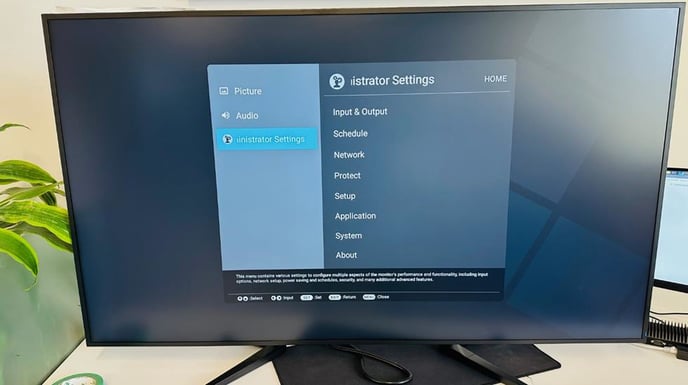
2. Go to the “Input & Output” tab and select “Startup App”:
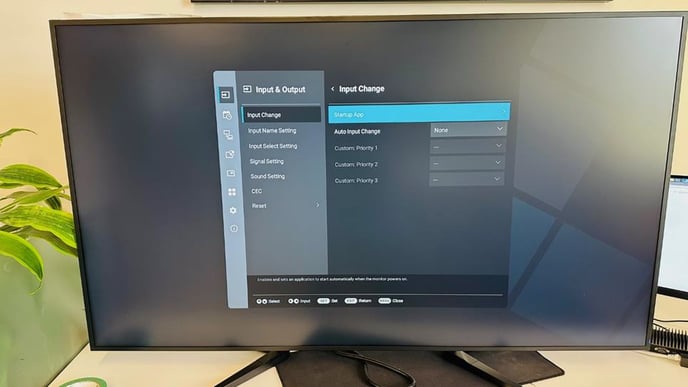
3. Make sure the “Startup” toggle button is enabled, then choose the L Squared Slide app from the drop-down menu:
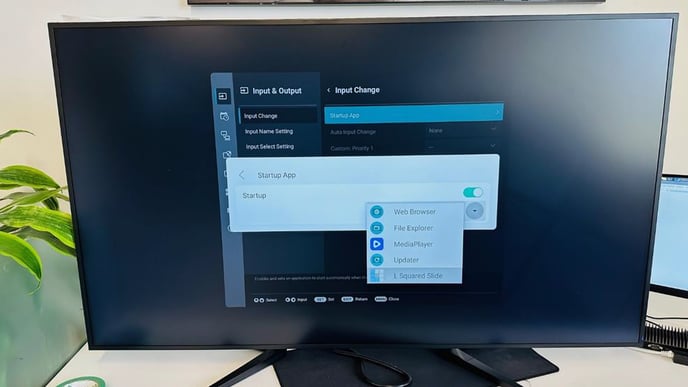
4. L Squared Slide is now set to launch automatically when the Sharp TV starts up.
Add L Squared Slide to Home Screen
To add the L Squared Slide app to the home screen of the Sharp TV, please follow these steps:
1. Go to Settings > Administrator Settings > Setup > App Icon Layout:
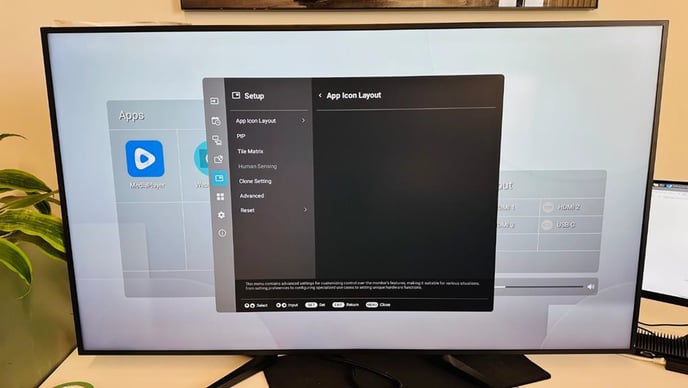
2. This will launch the customization screen:
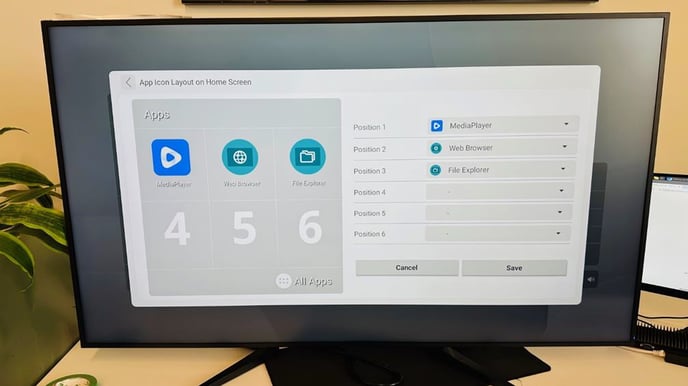
3. Swap the “Media Player” app with the L Squared Slide app and hit Save button:
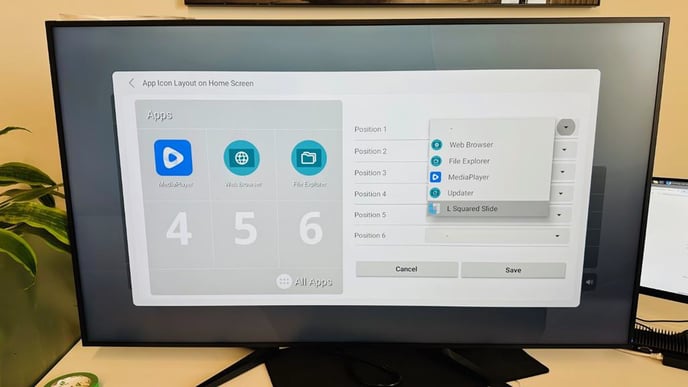
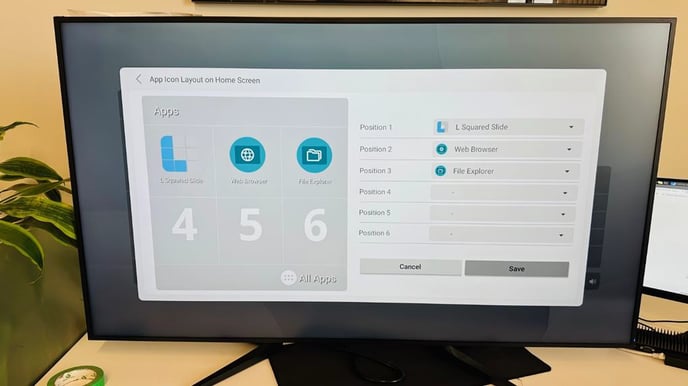
4. L Squared Slide has now been added to the home screen for quick access:
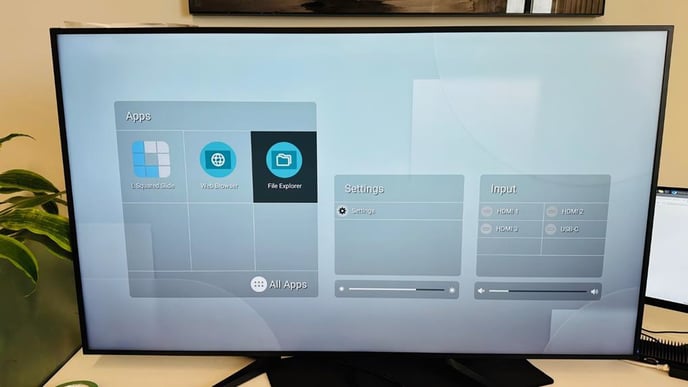
5. Launch the L Squared Slide app from the home screen and enjoy your personalized
content.