![LSquared-logo-gray.png]](https://help.lsquared.com/hs-fs/hubfs/captivate/LSquared-logo-gray.png?height=40&name=LSquared-logo-gray.png)
Create Teams Live Event
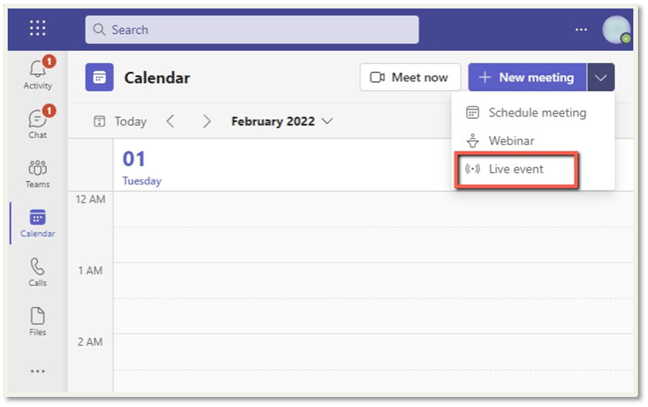
- Create Live Event in Teams.
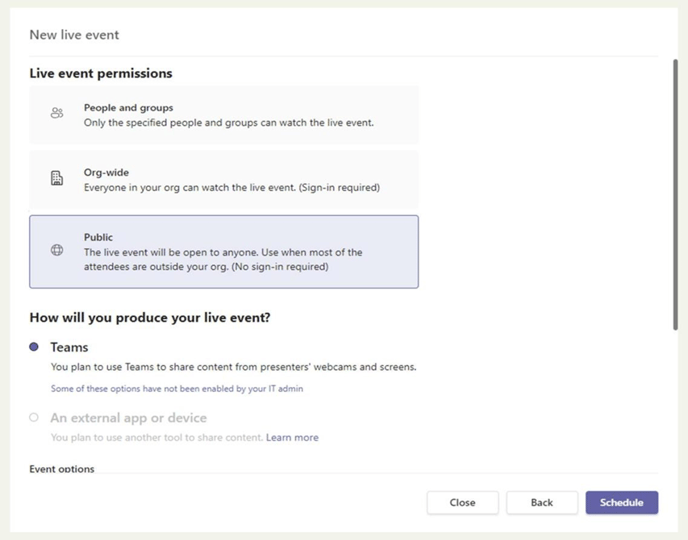
- While creating the live event, select "Public" in "Live event permission" if you don't want the user to log in with their Microsoft account on the media player.
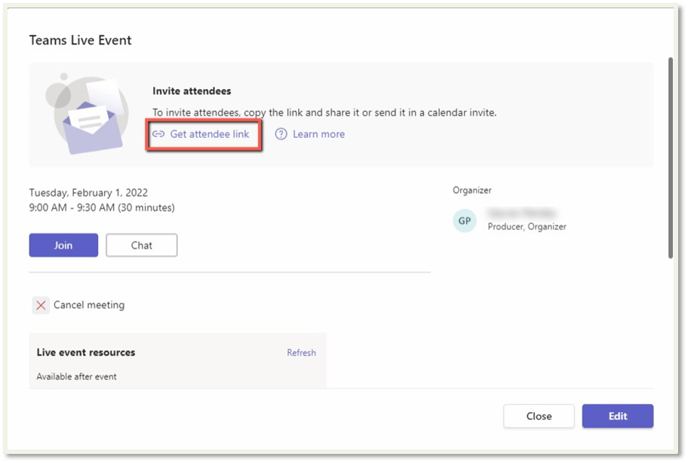
- Copy the event link by clicking on the "Get attendee link".
-
The URL begins with "https://teams.microsoft.com/l/". Change this to insert /_#between "https://teams.microsoft.com/" and "l/"
So the "https://teams.microsoft.com/l/" becomes "https://teams.microsoft.com/_#/l/"
- Append the below string that will automatically join the event as an anonymous participant. &anon=true&setting=enableDirectPublicBroadcastJoin:true
-
- Sample updated URL: https://teams.microsoft.com/_#/l/meetup-
join/19:meeting_MmI4M2QzOTMtNjdiZC00NjgyLWE5YmItMDkzN2UwN2I0ZTZh@thread.v2/0 ?context=%7b%22Tid%22:%22cec84dcb-6721-4a61-848f-721ad9d3a442%22,%22Oid%22:%228ae654c0-5bdb-485a-8f54-bef8ded84126%22,%22IsBroadcastMeeting%22:true%7d&btype=a&role=a&anon=true&settin g=enableDirectPublicBroadcastJoin:true
- Create Microsoft Teams widget with the URL updated above.
Settings on Media Player
- On the media player, open Chrome and go to the "chrome://extensions/" page.
- Turn on the developer mode.
- Download the L Squared Chrome extension for Teams Auto Join from following URL: https://lsquared.com/ToDownload/teams-auto-join.zip
- Drag and drop the downloaded “teams-auto-join.crx" file on this page.
- This may ask you to allow installing a new Chrome extension, click on allow button.
- After installing, if the extension is not enabled, follow the instructions in the "How to
whitelist Chrome Extension" section.
7. Close chrome.
8. Launch command prompt as admin and execute the following command (change the path of chrome.exe as required):
9. “<path>/chrome.exe” --autoplay-policy=no-user-gesture-required
10. Close command prompt and launch Slide.
How to whitelist Chrome Extension
- Download the “Policy Templates” package from following URL: https://lsquared.com/ToDownload/policy_templates.zip
- Copy [policy_templates]\windows\admx\chrome.admx to c:\windows\policydefinitions
- Copy [policy_templates]\windows\admx\[yourlanguage]\chrome.adml to
c:\windows\policydefinitions\[yourlanguage]\chrome.adml
4. In Chrome, go to the Extensions page (chrome://extensions)
5. Enable the Developer Mode checkbox at the top
6. Scroll down the list of disabled extensions and note the ID(s) of the extensions you want to enable. Click Start > Run, and type gpedit.msc
7. Expand User Configuration > Administrative Templates > Google Chrome > Extensions
8. Double-click to open Configure extension installation whitelist policy
9. Select Enabled, then click Show...
10. In the list, enter the ID(s) of the extensions you noted in Step 7
11. Click OK and restart Chrome
Hide “Restore” page popup:
- Open “preferences” file in C:\Users\<user>\AppData\Local\Google\Chrome\User Data\Default
- Change the value to "exit_type": "none", and "exited_cleanly": true.
- Save the file, and put it to attribute "read only".